
eSIM not working after you landed? In most cases it’s one of five quick settings — data roaming, the wrong data line, or an APN toggle — not a broken eSIM. This guide walks through the exact fixes for the most common travel eSIM problems on iPhone and Android, in the order that solves them fastest.
Fastest fixes at a glance:
- Turn on Data Roaming for the eSIM line. A travel eSIM needs data roaming enabled to connect abroad — this is the single most common fix.
- Select the eSIM as your data line. Set the travel eSIM (not your home SIM) for cellular data.
- Toggle Airplane Mode off and on, or restart the phone, to force a fresh network search.
- Pick the carrier network manually if it doesn’t connect automatically after landing.
- Confirm the plan has started — some eSIMs only activate on first network connection in the destination country.
Quick diagnosis: symptom → likely cause → fix
| Symptom | Most likely cause | First fix to try |
|---|---|---|
| “No Service” after landing | Data roaming off, or not registered on a network yet | Turn on Data Roaming for the eSIM; toggle Airplane Mode |
| Connected but no internet | Wrong data line selected, or APN not set | Set eSIM as data line; check the APN in the provider email |
| QR code won’t scan / “unable to add” | No Wi-Fi, or QR already used | Install on stable Wi-Fi; install once only — never re-scan |
| Very slow speeds | Plan speed cap, congestion, or weak signal | Switch 4G/5G mode; select another partner network manually |
| eSIM shows “not active” before the trip | Normal — activates on arrival | Wait until you land and connect to a local network |
Fix 1: “No Service” or no signal after arrival
This is the most common issue and almost always a settings fix, not a fault. Work through these in order:
- Enable Data Roaming for the eSIM line. On iPhone: Settings → Cellular → tap the eSIM/travel plan → Data Roaming ON. On Android: Settings → Network & internet → SIMs → tap the eSIM → Roaming ON. A travel eSIM connects to a local partner network, which counts as “roaming” even though it’s the plan’s normal behavior.
- Toggle Airplane Mode on for 10 seconds, then off, to force the phone to search for networks again.
- Restart the phone. A full power cycle often completes registration that stalled.
- Select the network manually. iPhone: Settings → Cellular → Network Selection → turn Automatic off and pick a listed carrier. Android: Settings → Network & internet → SIMs → Automatically select network off → choose a carrier. Try the one named on the product page.
Give each step 1–3 minutes to register before moving on.
Fix 2: eSIM connected but no internet
The bars show but pages won’t load. Check these:
- Set the eSIM as the data line. iPhone: Settings → Cellular → Cellular Data → select the travel eSIM. Android: Settings → Network & internet → SIMs → Mobile data → choose the eSIM.
- Turn off data on your home SIM so the phone doesn’t try to use it (and to avoid roaming charges on your home plan).
- Set the APN if required. Some plans need a specific APN. Find it in your provider email and enter it under Cellular Data Network (iPhone) or Access Point Names (Android).
- Turn Wi-Fi off briefly to confirm the eSIM data is actually working rather than a nearby Wi-Fi network.
Fix 3: QR code won’t scan or “unable to add eSIM”
- Install on stable Wi-Fi. Adding an eSIM downloads the profile and needs a reliable connection — airport Wi-Fi is often too weak. Install before you fly if you can.
- Use manual entry. If the camera can’t read the QR (for example, it’s on the same phone), choose “Enter details manually” and type the SM-DP+ address and activation code from your email. See the step-by-step installation guide.
- Don’t re-scan a used code. Each QR code installs once. If you already added it, scanning again will fail — the eSIM is already on your phone under Settings.
- Check compatibility. If the phone won’t add any eSIM, confirm it supports eSIM and is carrier-unlocked with our compatibility guide.
Fix 4: Slow data speeds
- Check for a speed cap. Some plans reduce speed after a high-speed allowance — see the “speed limit” line on the product page.
- Switch network mode. Force 4G/LTE if 5G is unstable, or vice versa, in your cellular settings.
- Try another partner network manually — a different local carrier may have stronger coverage where you are.
- Move location. Thick walls, basements, ferries and remote areas weaken any signal, eSIM or physical SIM alike.
Fix 5: eSIM deleted, disappeared, or won’t reactivate
Deleting an installed eSIM usually removes it permanently — most QR codes are single-use and cannot be reinstalled. If you deleted it by accident, contact support with your order number; a reinstall or reissue is not always possible, so avoid deleting an eSIM until your trip is over. If the profile is still listed but shows no plan, it may not have connected in the destination yet — try the Fix 1 steps after you arrive.
Seeing a specific error message? “SIM not provisioned”, “MM#2”, “This code is no longer valid” and “SIM Not Supported” each have a different cause. We explain what each one usually means on a travel eSIM, and the first fix to try, in eSIM not provisioned? Error messages explained.
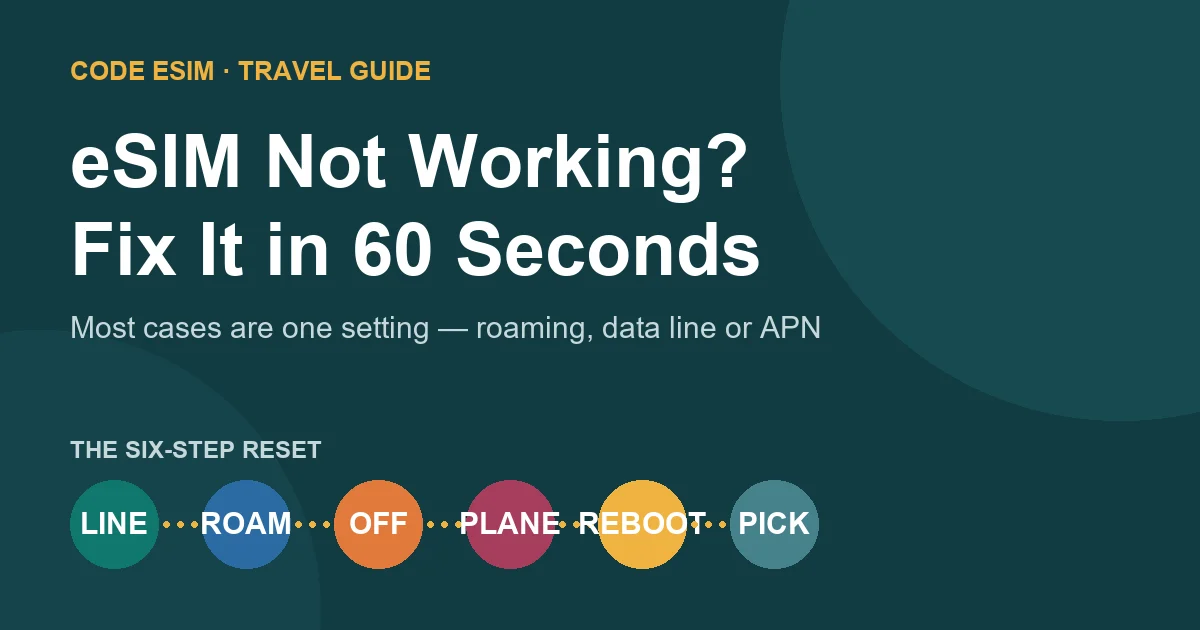
The 60-second reset checklist
When something isn’t working, run this sequence before anything else:
- eSIM selected as the data line?
- Data Roaming ON for the eSIM?
- Home SIM data OFF?
- Airplane Mode off/on, then wait 2 minutes?
- Restarted the phone?
- Tried manual network selection?
These six checks resolve the large majority of travel eSIM problems.
When to contact support (and what to send)
If it still won’t connect after the checklist, contact support with:
- Your order number and the email used to buy.
- Your phone model and operating system version.
- A screenshot of the cellular/SIM settings and the network status.
- The country and city where you’re trying to connect.
That information lets support confirm activation status and network registration quickly instead of guessing.
eSIM troubleshooting FAQ
Why is my eSIM not working after I landed?
The most common reason is that Data Roaming is off for the eSIM line. A travel eSIM connects through a local partner network, which requires data roaming to be enabled. Turn it on for the eSIM, make sure the eSIM is your selected data line, then toggle Airplane Mode off and on.
Why does my eSIM say “No Service”?
“No Service” usually means the phone hasn’t registered on a local network yet. Enable Data Roaming for the eSIM, restart the phone, and if it still doesn’t connect, select a carrier manually in network settings — ideally the one named on the product page.
My eSIM is connected but I have no internet. What’s wrong?
Check that the eSIM (not your home SIM) is set as the cellular data line, that your home SIM’s data is off, and that any required APN from your provider email is entered. Turning Wi-Fi off briefly confirms whether the eSIM data itself is working.
Can I reinstall an eSIM I accidentally deleted?
Usually no. Most eSIM QR codes are single-use, so a deleted profile cannot be reinstalled. Contact support with your order number to check whether a reissue is possible, and avoid deleting an eSIM until after your trip.
Do I need to set an APN for my eSIM?
Many travel eSIMs configure automatically, but some require a specific APN. If you have signal but no internet, enter the APN listed in your provider email under your phone’s cellular data network settings.
Bottom line
An eSIM that “isn’t working” is almost always a quick settings fix: enable Data Roaming for the eSIM, set it as your data line, turn off your home SIM’s data, and toggle Airplane Mode or restart. Install on stable Wi-Fi before you fly, never re-scan a used QR code, and keep your order details handy in case you need support. Follow the six-step checklist and most problems clear in under a minute.
Still choosing a plan? Browse travel eSIM plans for Japan, Korea, Thailand, China, Europe and the USA, or see all destinations. New to eSIMs? Start with what is an eSIM and how it works.
Last reviewed July 23, 2026. Menu paths vary slightly by phone model and OS version. Reference reading: Apple Support: Use eSIM while traveling internationally and Google: Manage your eSIM & SIM.