
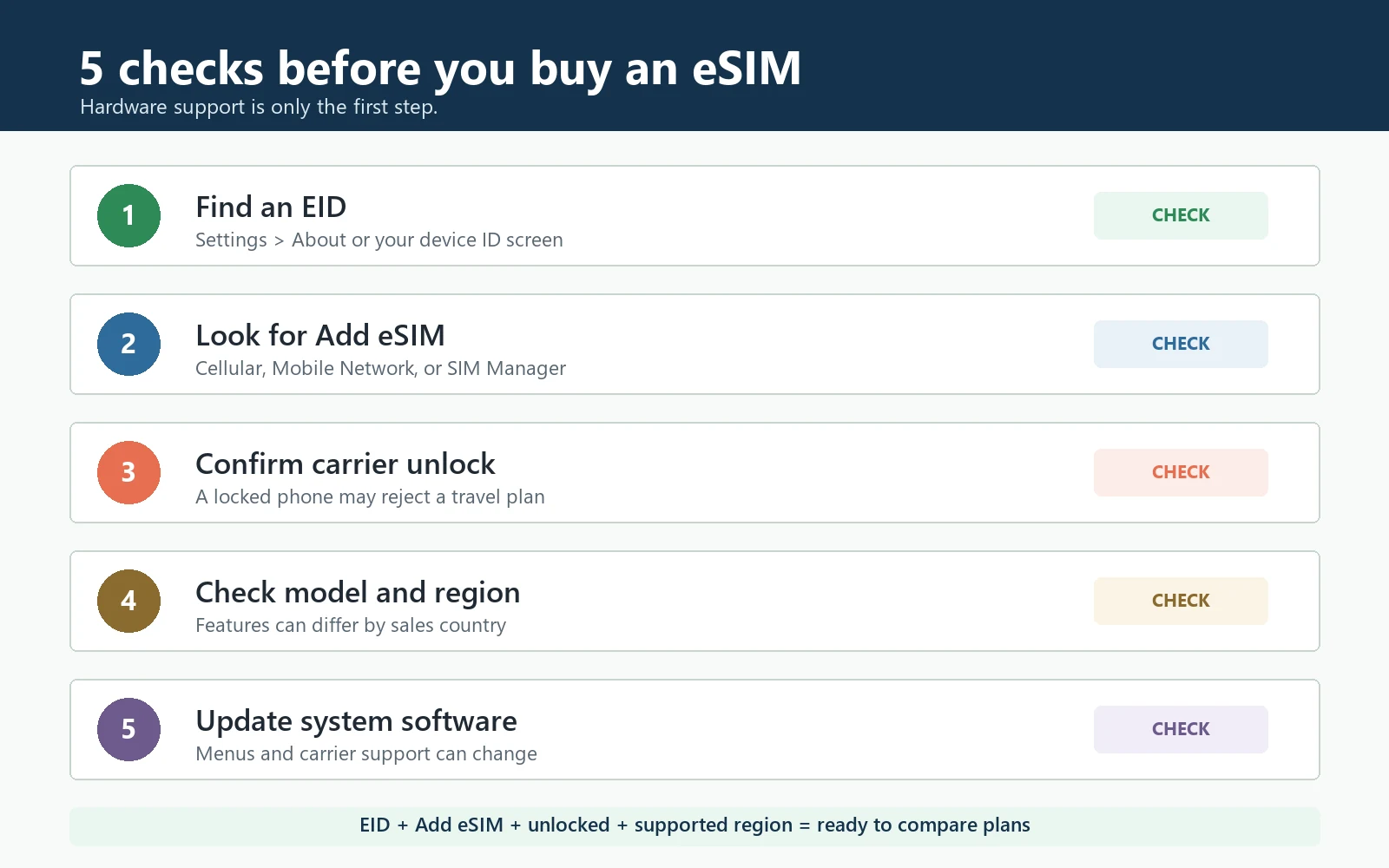
Quick answer: To check whether your phone supports eSIM, look for an EID, confirm that your settings include an Add eSIM or Add Cellular Plan option, and verify that the device is carrier-unlocked. You should also check the exact model number and sales region. Finding an EID is a strong sign of eSIM hardware, but it does not guarantee that every carrier or travel eSIM will work.
This guide explains five reliable checks for iPhone, Google Pixel, Samsung Galaxy, and other Android phones. Complete them before buying a plan, especially if the phone was purchased from a carrier or in a region where eSIM features differ.
eSIM compatibility checklist
| Check | What to look for | Why it matters |
|---|---|---|
| EID | A long EID number in Settings, About, or a device ID screen | Indicates that the phone has an embedded SIM identifier |
| Add eSIM menu | Add eSIM, Download SIM, Add Cellular Plan, or SIM Manager | Shows that the current software exposes eSIM setup |
| Carrier lock | No SIM restrictions, unlocked status, or confirmation from the original carrier | A locked phone may reject a travel eSIM |
| Exact model and region | Model number plus country or region of purchase | The same phone family can have different SIM features |
| Software and carrier support | Current system version and a supported carrier profile | Menus and activation options can depend on software and carrier policy |
What does it mean when a phone supports eSIM?
An eSIM is a digital SIM profile downloaded to hardware built into a compatible device. A phone that supports eSIM needs more than a recent processor or a modern-looking settings menu. It needs embedded SIM hardware, software that can manage profiles, and permission from the device maker and carrier configuration to use that feature.
It helps to separate four questions:
- Does the phone contain eSIM hardware? An EID is the most useful clue.
- Does the current software expose eSIM setup? Look for Add eSIM or an equivalent option.
- Is the phone unlocked? A carrier lock can block another provider’s profile.
- Does the exact model support eSIM in its sales region? Regional variants can differ even when the marketing name is identical.
A positive answer to only one question is not enough. For example, an EID may appear while Add eSIM is unavailable because of a carrier restriction, regional model policy, work-device management profile, or outdated software.
Why online compatibility lists sometimes disagree
Compatibility lists are useful starting points, but they often describe a phone family rather than every regional version. A list may also be written before a carrier enables support, after a manufacturer changes a menu, or for a market where the same device uses different SIM hardware. That is why two apparently credible lists can give different answers.
The safest order is device evidence first, official model documentation second, and a provider list third. Start with the EID and Add eSIM menu on the actual phone. Next, confirm the model number with the manufacturer or original carrier. Finally, check whether the travel eSIM provider accepts that device and destination. This order reduces the chance of buying for the wrong variant.
Be careful with refurbished and imported phones. The settings language, seller location, or current SIM does not prove where the hardware was originally sold. Record the model number and, when possible, review the original purchase or warranty region. A phone can work normally with a physical SIM in your country while retaining eSIM restrictions from another market.
Also distinguish compatibility from capacity. Many phones can store several eSIM profiles but allow only one or two lines to be active at the same time. Storage limits and active-line limits vary by device. If you already use an eSIM for your home number, confirm how many lines can remain active before adding a travel profile. You normally do not need to delete a working profile simply to check compatibility.
Method 1: Find the EID
The EID is an identifier associated with embedded SIM hardware. Apple documents EID alongside the serial number and IMEI in its device information guidance. Google likewise includes EID among the identification numbers that may be available on supported Pixel phones.
On many phones, open Settings and search for EID. You may find it under About phone, General > About, Status information, or SIM status. The exact path changes by brand and software version.
If an EID is present, the device likely contains eSIM hardware. Treat that as the first green light, not final proof. EID does not tell you whether the phone is unlocked, whether the current carrier allows another profile, or whether a particular travel plan supports that model.
If no EID appears, do not assume immediately that the phone is incompatible. First update the operating system, restart, search Settings, and verify the exact model on the manufacturer’s support site. Some identification screens are hidden under a SIM or status submenu.
Method 2: Look for Add eSIM in settings
The most practical check is whether the phone offers a setup command. Depending on the device, it may be called Add eSIM, Add Cellular Plan, Download a SIM instead, Add mobile plan, or Add using QR code.
A visible setup option means the operating system currently exposes an eSIM workflow. This is stronger evidence than relying on a third-party compatibility list because it reflects the phone in your hand, its software, and its regional configuration.
However, the menu can still appear on a locked phone. Do not scan a purchased QR code until you have also checked carrier lock and model compatibility. Many travel eSIM activation codes are intended for one installation, so experimenting before the device is ready can create an avoidable support problem.
Method 3: Try *#06#, but understand its limits
Open the phone app and enter *#06#. On many devices, this displays identification numbers such as IMEI. Some eSIM-capable phones also show an EID on this screen. If you see an EID, that supports the hardware check described above.
The dial code is not a universal eSIM test. Results vary by manufacturer, dialer app, carrier firmware, and region. Some compatible phones show IMEI but not EID through the code, while the EID remains available in Settings. Tablets and devices without a standard phone dialer may not support the code at all.
Use *#06# as a convenient shortcut, not as the only decision rule. If the code shows no EID, continue with the Settings and exact-model checks.
Method 4: Check whether the phone is carrier-unlocked
A phone can support eSIM technically and still refuse a travel eSIM because it is locked to the network that sold it. Lock terminology differs by platform. An iPhone may show Carrier Lock or Network Provider Lock. Android phones often require confirmation from the original carrier, account portal, or purchase paperwork.
If the device was financed, discounted with a contract, or purchased directly from a mobile carrier, verify its unlock status before paying for a plan. Contact the original carrier and provide the IMEI if their online tool cannot confirm it.
Unlocking does not add eSIM hardware. It only removes a network restriction from a device that may already support the feature. Likewise, an unlocked phone is not automatically eSIM-compatible.
Method 5: Verify the exact model number and purchase region
Marketing names are too broad for a final compatibility decision. Saying “Galaxy S series,” “Pixel,” or “iPhone” may not identify the regional hardware variant. Find the full model number in Settings > About, on the original box, or in the purchase record.
Then check the manufacturer’s support page for that model and region. Pay attention to whether the page discusses eSIM, dual SIM, SIM Manager, or downloading a mobile plan. Carrier editions and enterprise-managed devices can also have different activation rules.
This check is especially important for phones purchased in mainland China. Apple’s current support guidance describes specific rules for mainland China iPhone models, and older blanket advice can become outdated as new models are released. Read our dedicated mainland China iPhone eSIM support guide for the current model and activation details instead of applying a general iPhone list.
How to check eSIM support by phone brand
iPhone
- Open Settings > General > About.
- Scroll for an EID. Apple lists EID among the identifiers available for supported devices.
- Return to Settings > Cellular or Mobile Data.
- Look for Add eSIM or Add Cellular Plan.
- In About, check Carrier Lock. Wording such as No SIM restrictions indicates an unlocked state, but contact the carrier if the field is unclear.
- Confirm the model number and country of purchase, particularly for mainland China, Hong Kong, Macau, or carrier-specific devices.
Apple’s official Set up eSIM on iPhone page describes supported setup methods. Its device ID guide explains where to find EID and IMEI.
Google Pixel
- Open Settings > About phone and look for SIM status, IMEI, or EID information.
- Open Settings > Network & internet > SIMs.
- Look for an option to add a SIM or download an eSIM.
- Confirm the exact Pixel model, carrier edition, and sales country.
- If the option is missing, update Android and Google Play system components, restart, and check again.
Google’s official guidance covers dual SIM use on Pixel and finding Pixel phone ID numbers. Menu names can change between Android versions, so use Settings search if the documented path differs.
Samsung Galaxy
- Open Settings > Connections > SIM Manager.
- Look for Add eSIM or a similar command.
- Open Settings > About phone > Status information and look for EID where available.
- Record the full model number, not only the Galaxy family name.
- Check the Samsung support page for the model’s country and carrier.
Samsung’s official Galaxy eSIM instructions note that availability can vary by country and carrier. That warning is important: a compatible model sold in one market does not prove that every regional variant behaves identically.
Other Android phones
On Motorola, Xiaomi, OPPO, Honor, Sony, and other Android devices, search Settings for eSIM, SIM Manager, Download SIM, or Add mobile plan. Then compare the exact model number with the manufacturer’s regional specification page.
Do not rely only on the Android version. Android can support eSIM as a platform while an individual phone lacks the hardware or manufacturer implementation. Carrier firmware and enterprise management can also hide setup features.
EID found, but Add eSIM is missing: what to do
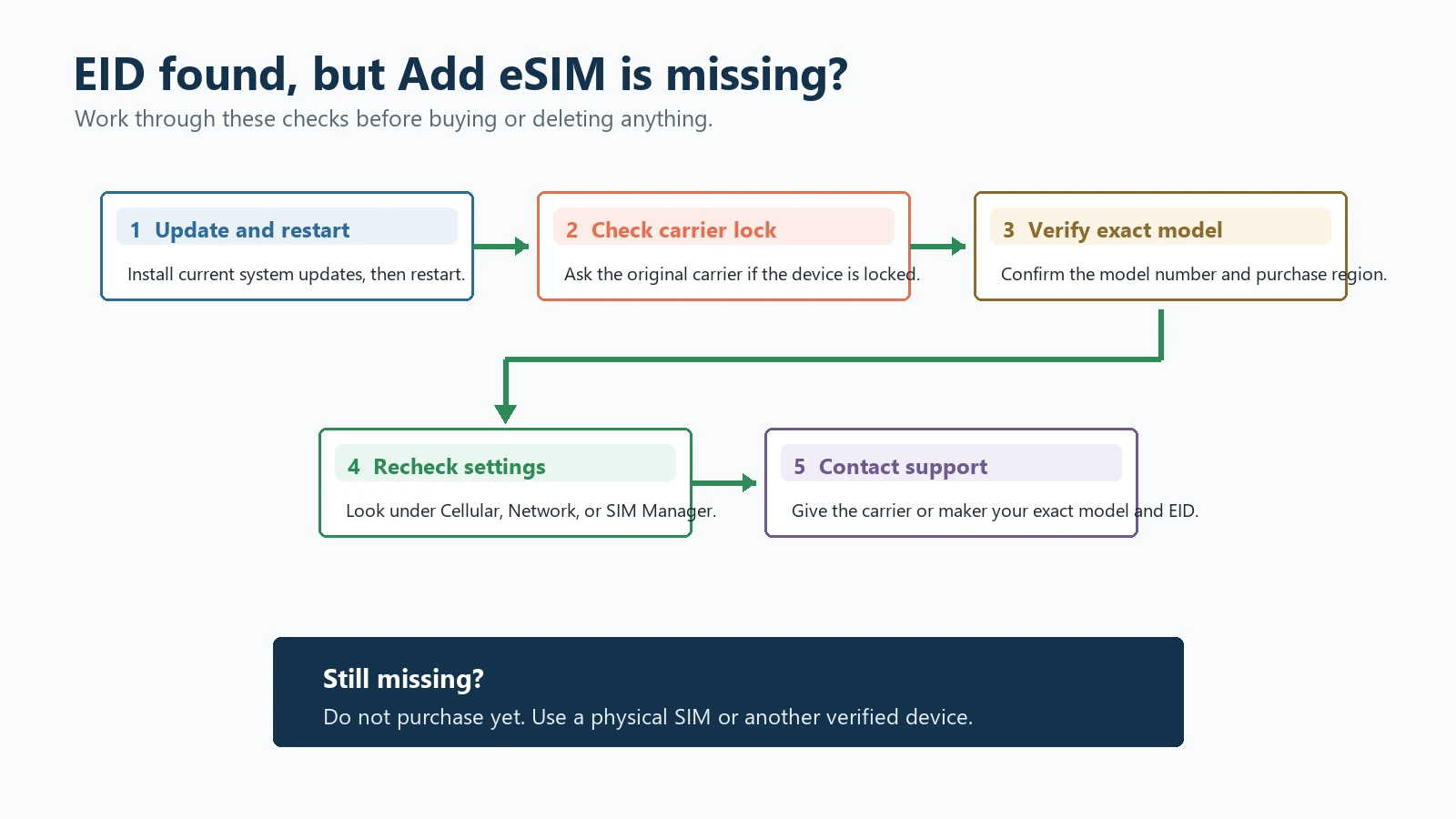
- Update and restart. Install current operating-system and carrier updates, then restart the phone.
- Search Settings. Search for eSIM, SIM, mobile plan, cellular plan, and EID rather than relying on one menu path.
- Check carrier lock. Ask the original carrier whether the IMEI is unlocked for another provider.
- Verify the model. Compare the complete model number and sales region with official manufacturer documentation.
- Check device management. A work or school management profile may restrict cellular changes. Ask the administrator rather than removing management yourself.
- Contact the manufacturer or carrier. Give support the exact model number, software version, EID status, and region of purchase.
If the phone still lacks an Add eSIM option, do not purchase yet. Use another verified device or a physical SIM when available. Do not delete an existing eSIM as a speculative fix; some profiles cannot be reinstalled without provider assistance.
What to verify before buying a travel eSIM
Once the device checks pass, confirm that the plan itself matches your trip. Review the destination coverage, validity period, activation policy, hotspot support, high-speed data allowance, and whether the plan is data-only.
Use the Code eSIM compatibility page as a final pre-purchase reference, then browse available destinations. After purchase, follow the English eSIM installation guide while connected to reliable Wi-Fi.
If you are traveling to China, also read the China travel eSIM guide for setup, data planning, and app-access considerations. Device compatibility and network behavior are separate questions, so verify both.
Frequently asked questions
Does an EID mean my phone supports eSIM?
An EID is strong evidence that the phone contains embedded SIM hardware. It does not prove that the phone is unlocked, that Add eSIM is enabled, or that every carrier supports the exact model. Complete the settings, lock, model, and region checks too.
What is the code to check eSIM compatibility?
On many phones, entering *#06# displays IMEI and may also display EID. It is a useful shortcut, but not a universal compatibility test. A compatible phone may show EID only in Settings, and some devices do not have a standard dialer.
Is EID the same as IMEI?
No. IMEI identifies cellular radio equipment, while EID identifies embedded SIM hardware. A dual-SIM device may expose multiple IMEI values. Do not post either identifier publicly or include it in screenshots.
Can a carrier-locked phone use a travel eSIM?
Usually not if the travel eSIM belongs to another provider. Confirm unlock status with the carrier that sold the phone. Unlocking policies depend on the carrier, payment status, account history, and local rules.
Why does my phone have EID but no Add eSIM option?
Possible causes include outdated software, carrier restrictions, a regional model policy, enterprise device management, or a menu path that changed after an update. Follow the troubleshooting sequence above before purchasing.
Do all recent iPhones, Pixel phones, and Galaxy phones support eSIM?
No. Support depends on exact model, sales region, carrier, and software. Never decide from the family name alone. Check the phone’s EID, Add eSIM menu, model number, and official regional documentation.
Should I install an eSIM before traveling?
Installing before departure is often convenient because you have reliable Wi-Fi and time to troubleshoot. Activation timing varies by plan, however, so follow the provider’s instructions. Some plans start validity at installation, while others start after first network connection.
What should I do if I am still unsure?
Do not buy based on a compatibility list alone. Contact the device manufacturer or original carrier with the exact model number and region of purchase. Then ask the eSIM provider whether that model is supported.
Final decision
Your phone is ready to compare travel eSIM plans when you can find an EID, see an Add eSIM workflow, confirm that the device is unlocked, and verify that the exact regional model supports eSIM. If one of those checks fails, pause before purchasing and resolve it first.
Sources reviewed July 12, 2026: Apple Support pages for setting up eSIM, finding EID and IMEI, and mainland China iPhone rules; Google Pixel Help pages for dual SIM and device identifiers; Samsung Support guidance for Galaxy eSIM setup. Manufacturer and carrier policies can change, so recheck official documentation for your exact device.