
“SIM not provisioned” means the mobile network did not accept your eSIM: the profile is on the phone, but the network found no active subscription for it. On a travel eSIM this usually means activation has not finished on the provider’s side, the plan has ended, or registration failed once. Restart the phone and switch the eSIM line off and on. If the message stays, contact support with your order number. Do not delete the eSIM: most activation codes install only once.
eSIM errors are short and unhelpful. “No Service”, “This code is no longer valid” and “SIM not provisioned” each have a different cause and a different fix, and the wrong fix, deleting the eSIM, can turn a five-minute problem into a lost plan. Here is what each common message usually means on a travel eSIM, based on Apple and Google’s own support pages, the mobile network standard and how the 1,094 plans in our catalogue start, as of 6 October 2026.
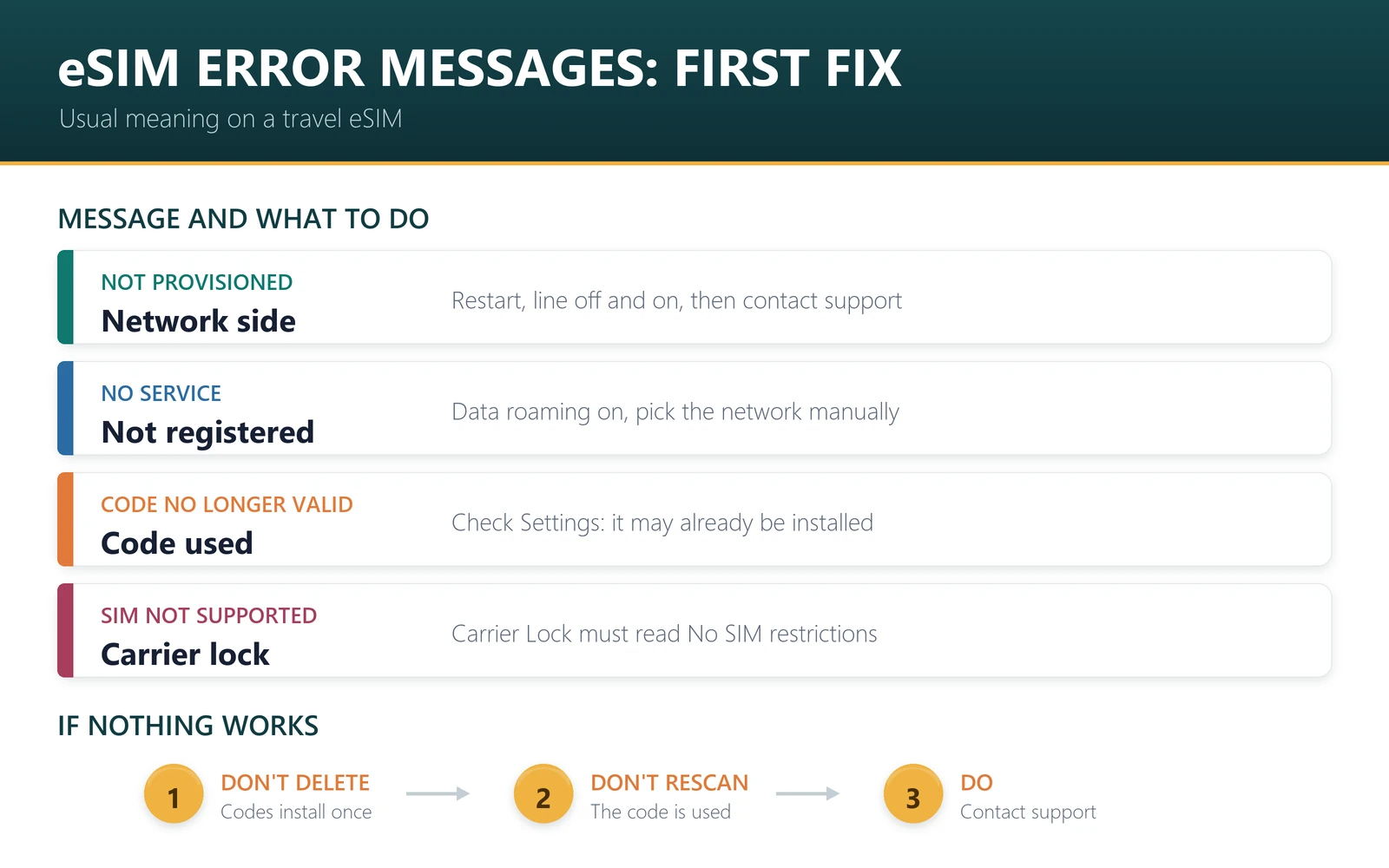
- “SIM not provisioned”: the network does not recognise an active subscription. Restart, then contact support.
- “No Service” before you land: usually normal. Most travel eSIMs connect only in the countries they cover.
- “This code is no longer valid”: the code has already been used. Check whether the eSIM is already installed.
- Never delete the eSIM to reset it: it usually cannot be installed again from the same code.
eSIM error messages and what they mean
| Message | When you see it | What it usually means | What to do |
|---|---|---|---|
| SIM not provisioned, or SIM not provisioned MM#2 | After installing, mostly on Android | The network found no active subscription for the eSIM | Restart, switch the line off and on, check the plan has not ended, then contact support |
| No Service, or SOS only | Before or just after landing | Not yet registered on a network the plan uses | Turn on data roaming for the eSIM, toggle Airplane Mode, select the network manually |
| This code is no longer valid | iPhone, when adding the eSIM | The activation code has been used or has expired | Check Settings for an installed eSIM; if you deleted it, contact support |
| Unable to Complete Cellular Plan Change | iPhone, during installation | The download did not finish | Install again on stable Wi-Fi; if it still fails, contact support before retrying |
| SIM Not Supported, No SIM or Invalid SIM | iPhone, after installing | The phone may be carrier-locked, or the line is switched off | Check Carrier Lock in Settings and that the line is turned on |
| Bars but no internet | After landing | The wrong line is set for data, or the plan needs an APN | Set the eSIM as the data line; enter the APN from your install email |
What “SIM not provisioned” and “MM#2” mean
“Provisioned” is network language for a SIM that has been set up as an active subscription. When your phone tries to register, the network looks up the subscriber identity stored on the eSIM, called the IMSI. The “MM#2” suffix that some Android phones add matches reject cause #2 in the 3GPP TS 24.008 mobile network standard, “IMSI unknown in HLR”: the home network’s subscriber register did not recognise that identity.
So the problem is on the network side, not in your phone’s settings. For a travel eSIM, that usually means one of three things: activation has not completed yet, the plan has ended, or a registration attempt failed and needs a retry. A restart and switching the line off and on fixes the third. The first two need the provider, so if the message persists after a restart, contact support rather than changing more settings.
Why “No Service” before you land is normal
Of the 1,094 plans in our catalogue on 6 October 2026, 1,042 start on first data use, 11 on first network connection and 41 when the eSIM is installed. All of them connect only in the countries they cover. A Japan eSIM installed at home will show “No Service” until you land in Japan, and that is expected. Our guide to when an eSIM starts counting explains the three activation types.
After landing, “No Service” usually means data roaming is off for the eSIM line. A travel eSIM connects to a local partner network, which your phone treats as roaming. If it still does not connect, turn off automatic network selection and pick a network named on your plan’s product page. If you have not installed the eSIM yet, our guide to installing an eSIM after you land explains why installing at home on Wi-Fi is safer.
Still not working? Our troubleshooting page walks through each fix step by step, and the install guide covers setup on iPhone and Android.
The fix order that solves most errors
- Toggle Airplane Mode on for ten seconds, then off.
- Switch the eSIM line off and on. On iPhone: Settings, Cellular, tap the line, Turn On This Line. On a Pixel: Settings, Network & internet, SIMs.
- Restart the phone.
- Check for a carrier settings update on iPhone, under Settings, General, About.
- Turn on data roaming for the eSIM line and set it as the cellular data line.
- Select the network manually, choosing one listed on the product page.
The first four steps are the ones Apple lists in If you can’t set up an eSIM on your iPhone. For “No SIM” or “Invalid SIM”, Apple’s SIM alert guide adds a carrier lock check: under Settings, General, About, Carrier Lock should read “No SIM restrictions”. Google’s Pixel eSIM help advises trying again and then contacting the carrier if a problem persists. If no eSIM will install at all, first check that your phone supports eSIM.
Why you should not delete the eSIM
Deleting an eSIM removes its profile from the phone. With most travel eSIMs, the activation code works once, so scanning it again returns “This code is no longer valid”. None of the steps above requires deleting anything. If you have already deleted it, contact support with your order number; a reissue is not always possible. Our eSIM not working guide covers the other common problems, from slow speeds to no internet.
What to send support
- Your order number and the email you bought with.
- The exact error message, ideally as a screenshot.
- Your phone model and software version, and the EID or IMEI from Settings, General, About on iPhone.
- The country and city you are in, and whether data roaming is on.
Frequently asked questions
What does “SIM not provisioned” mean on an eSIM?
It means the network found no active subscription for the eSIM, even though the profile is installed. On a travel eSIM this usually means activation has not finished, the plan has ended, or registration failed once. Restart the phone and switch the line off and on; if it persists, contact support.
What does “SIM not provisioned MM#2” mean?
MM#2 matches reject cause #2 in the 3GPP TS 24.008 standard, “IMSI unknown in HLR”. The network looked up the subscriber identity stored on your eSIM and did not find it as active. It is a network-side problem, so after one restart, contact your eSIM provider.
Why does my eSIM say “No Service”?
Before you travel, because a travel eSIM connects only in the countries it covers. After landing, usually because data roaming is off for the eSIM line. Turn it on, toggle Airplane Mode, and if needed select a network named on the product page manually.
What does “This code is no longer valid” mean?
The activation code has already been used or has expired. Most travel eSIM codes install only once. Check Settings, Cellular on iPhone: if the eSIM is listed there, it is already installed and does not need the code again. If you deleted it, contact support.
Should I delete and reinstall my eSIM to fix an error?
No. Deleting a travel eSIM usually means it cannot be installed again from the same code. Restarting the phone, switching the line off and on, and turning on data roaming fix most errors without deleting anything. If they do not, contact support before you remove the eSIM.
Why does my iPhone say “SIM Not Supported” for an eSIM?
Often because the iPhone is locked to a carrier. Apple’s guide says to check Settings, General, About: Carrier Lock should read “No SIM restrictions”. If it does not, only your home carrier can unlock the phone, and a travel eSIM will not work until it does.
Most eSIM error messages have a simple first fix, and none of them is fixed by deleting the eSIM. Restart, check the line and data roaming, and contact support with the exact message if it persists.
Last reviewed 6 October 2026. Troubleshooting steps follow Apple and Google’s support pages on that date; settings paths can change between software versions. Activation counts come from our own catalogue on that date. Error message meanings describe the usual cause on travel eSIMs and are not a diagnosis of a specific case. iPhone is a trademark of Apple Inc. and Pixel of Google LLC; this article is independent of them.